Navigating the world of PC gaming across different operating systems can be a real headache for busy gamers balancing work and life. You love your games, but finding out which titles will actually run on your preferred setup, especially if you are venturing into Linux or simply want seamless cross-platform play, often feels like a puzzle. This comprehensive guide cuts through the confusion, helping you discover exactly which games have Steam Play compatibility, powered by Proton, to ensure your valuable gaming time is spent playing, not troubleshooting. We'll delve into the vast library of playable titles, offer tips for optimizing your experience, and highlight how this technology empowers you to enjoy your favorite games without traditional OS barriers. Dive in to unlock a world of gaming freedom and get back to what matters most: fun and relaxation.
Which specific AAA titles are running flawlessly on Steam Play in 2026?
In 2026, many major AAA releases boast near-perfect compatibility with Steam Play. Blockbusters like Elden Ring, Cyberpunk 2077 (with ray tracing often working well), God of War, Red Dead Redemption 2, and Marvel's Spider-Man Remastered are frequently reported as running flawlessly with 'Platinum' ratings on ProtonDB. Newer titles such as Hogwarts Legacy and Starfield also show excellent performance, often matching or closely approaching native Windows performance, making them ideal for gamers balancing life and play seeking premium experiences on Linux.
How do I check a game's Steam Play compatibility before buying?
The most reliable way to check a game's Steam Play compatibility before purchasing is to visit ProtonDB (ProtonDB.com). This community-driven website provides detailed reports from thousands of Linux gamers, rating games from 'Platinum' (runs perfectly out-of-the-box) to 'Borked'. You can search for any game and see recent reports, recommended Proton versions, and essential tweaks. Additionally, look for 'Steam Deck Playable' or 'Great on Deck' badges on the Steam store page, as these indicate strong Steam Play compatibility.
What are the common performance pitfalls when using Steam Play and how do I avoid them?
Common performance pitfalls with Steam Play include using outdated graphics drivers, selecting an incompatible Proton version, or encountering issues with specific game launchers or anti-cheat systems. To avoid these, always ensure your graphics drivers are up-to-date, consult ProtonDB for the optimal Proton version and any necessary launch options, and monitor your system's performance with tools like MangoHud. For anti-cheat, verify the game's current status on ProtonDB; many popular multiplayer titles now support Proton, but some remain problematic.
Are there any social or multiplayer games that struggle with Steam Play's anti-cheat integration?
While many popular multiplayer games like Apex Legends, Destiny 2, and War Thunder have robust Steam Play (Proton) support for their anti-cheat systems in 2026, some highly competitive titles or those with niche anti-cheat solutions can still struggle. Games that rely on kernel-level anti-cheat without explicit Proton support may prevent launching or result in bans. Always check ProtonDB for recent community reports specifically on anti-cheat status, as this landscape is constantly evolving and can be a significant pain point for gamers who value online social interaction.
Beyond the Steam Deck, what other hardware setups benefit most from Steam Play?
Beyond the Steam Deck, high-performance desktop PCs running Linux distributions like Pop!_OS, Fedora, or Ubuntu benefit immensely from Steam Play. Gamers utilizing powerful AMD Ryzen CPUs/GPUs or Intel/NVIDIA combinations can achieve near-native Windows performance across a vast game library. Budget-conscious gamers with older hardware can also extend the life of their systems by switching to a lighter Linux OS and using Steam Play, often finding improved performance compared to a bogged-down Windows installation, enabling them to enjoy modern games without costly upgrades.
How do community reports on ProtonDB influence my game choices?
Community reports on ProtonDB are invaluable for informing your game choices by providing real-world compatibility data and troubleshooting advice. They allow busy gamers to quickly assess if a game will run well on their Linux setup, saving time and money. A game with a 'Platinum' or 'Gold' rating and recent positive reports instills confidence, while 'Silver' or 'Bronze' ratings often include specific workarounds. Avoid games rated 'Borked' unless you're prepared for extensive troubleshooting, ensuring your limited gaming time is spent efficiently.
What's the future of Steam Play and Linux gaming looking like for the next few years?
The future of Steam Play and Linux gaming looks exceptionally bright for the next few years. Valve's continued investment, driven by the Steam Deck's success, ensures ongoing Proton development, improving compatibility and performance. We anticipate increased official support from game developers, broader anti-cheat integration, and further optimization within the Linux kernel and graphics drivers. These advancements will make Linux an increasingly viable and attractive gaming platform, empowering more gamers to enjoy their favorite titles without OS limitations and keeping them current without constant hardware worries.
Hey fellow gamers! Ever felt the frustration of eyeing a fantastic game only to wonder if it will actually run on your system? For many of us, especially those juggling jobs, families, and life's demands, gaming is that much-needed escape, a way to relax, build skills, or connect with friends. The last thing we need is a technical headache just to get a game to launch. This is particularly true if you are among the growing number of gamers exploring alternatives to Windows, like Linux, or simply want to maximize your existing hardware.
Today, we're diving deep into the world of Steam Play and Proton, Valve's incredible solution that lets you play a massive library of Windows-only games directly on Linux-based systems, including the ever-popular Steam Deck. Imagine being able to access almost any game you desire, regardless of your operating system. That's the promise of Steam Play. We’ll break down what it is, why it matters, how to find compatible games, and give you the insider tips to ensure your gaming sessions are smooth, fun, and hassle-free. Let's get you back to playing and conquering virtual worlds!
What Exactly is Steam Play and Proton?
At its core, Steam Play is Valve's umbrella term for allowing games purchased on Steam to be played on various operating systems. The magic behind it for Linux users is called Proton. Proton is a compatibility layer, a modified version of Wine, developed by Valve in collaboration with CodeWeavers. It translates Windows game commands into something Linux understands, essentially tricking Windows games into thinking they are running on their native OS.
This means that instead of developers needing to create a separate Linux version for every single game, Proton handles the translation on the fly. For the average gamer, this simply means clicking 'Play' on many of your favorite Windows titles within the Linux-based Steam client, just as you would on Windows. It's a game-changer for accessibility and choice, allowing an estimated 87% of US gamers who play regularly to expand their horizons without being tied to a single platform.
Why Does Steam Play Matter to You as a Gamer?
For the busy adult gamer, Steam Play is a revelation. It solves several pain points directly. First, it offers unparalleled flexibility. Whether you are running a Linux desktop, a Steam Deck, or even an experimental gaming rig, you are no longer limited to games with native Linux ports. This expands your potential library exponentially, meaning you get more value for your money from games you already own or are looking to purchase.
Secondly, it's about staying current and maximizing your hardware. With new games constantly releasing, and many gamers on a budget for hardware upgrades, Steam Play ensures your system stays relevant. You can enjoy the latest AAA titles without needing a dedicated Windows machine. It also taps into the trend of cross-platform play and device independence, which is increasingly important for US gamers who often split their time between mobile, console, and PC, and value the freedom to play anywhere, anytime.
How Can I Find Which Games Have Steam Play Compatibility?
Finding compatible games is easier than you might think! While Steam doesn't have an official 'Steam Play Compatible' filter, the community has stepped up to fill the gap. The primary resource is ProtonDB.
- ProtonDB: This is a community-driven database where Linux gamers report on how well games run using different versions of Proton. Each game is assigned a rating (Platinum, Gold, Silver, Bronze, Borked) indicating its compatibility out of the box. It also provides invaluable tips, tweaks, and specific Proton versions that might be needed to get a game running perfectly.
- Steam Store Tags: Some games on Steam now carry 'Steam Deck Playable' or 'Great on Deck' tags, which is a strong indicator of Steam Play (Proton) compatibility, as the Steam Deck runs on a Linux-based OS using Proton.
- In Your Steam Library: On a Linux-based Steam client, you can enable 'Steam Play for all other titles' in the Steam Play settings. This will attempt to run any Windows game using Proton, though success isn't guaranteed without checking ProtonDB first.
Remember, always cross-reference with ProtonDB for the most reliable, up-to-date information, including specific steps or recommended Proton versions that could save you hours of troubleshooting.
Are All Windows Games Playable via Steam Play?
While Steam Play and Proton have made incredible strides, it's not a universal solution for every single Windows game. The vast majority of titles, especially popular single-player experiences, run exceptionally well, often with little to no noticeable difference from their Windows counterparts. However, there are a few exceptions:
- Anti-Cheat Systems: Some aggressive anti-cheat systems, particularly in competitive online multiplayer games, can be a major hurdle. These systems are designed to detect modifications to the game environment, and Proton's translation layer can sometimes trigger them, leading to bans or preventing the game from launching. While Valve and anti-cheat developers are working to improve this, it remains the biggest compatibility challenge.
- DRM (Digital Rights Management): Certain complex DRM schemes can also interfere with Proton's ability to run games.
- Hardware-Specific Games: Very old games that rely on highly specific Windows APIs or hardware drivers that don't translate well might struggle.
Always check ProtonDB before diving into a competitive multiplayer game or a title known for strict DRM. The community reports will give you the clearest picture.
What Are Some Top Games That Work Great with Steam Play?
The list of 'Platinum' and 'Gold' rated games on ProtonDB is staggering and constantly growing! Here's a snapshot of popular titles that run exceptionally well, covering various genres that busy gamers often seek for relaxation or quick thrills:
- Action/Adventure: Elden Ring, Cyberpunk 2077, God of War, Red Dead Redemption 2, Marvel's Spider-Man Remastered, Hogwarts Legacy. These offer immersive worlds for unwinding after a long day.
- Multiplayer/Co-op: Apex Legends, Destiny 2, Grand Theft Auto V (online), Deep Rock Galactic, Valheim. Perfect for social play with friends or building new connections.
- Indie Gems: Hades, Stardew Valley, Hollow Knight, Disco Elysium. These often provide deep experiences that are easy to jump into for shorter sessions.
- Strategy/Simulation: Stellaris, Civilization VI, Factorio. For those who enjoy skill-building and long-term engagement.
- Classics: The Witcher 3: Wild Hunt, Doom Eternal, Horizon Zero Dawn. Proven titles that offer fantastic value.
The beauty is that this list represents just a fraction. From cozy games to intense competitive shooters (many of which now support Proton), Steam Play ensures you have a massive library at your fingertips. Trends show that social and cozy games continue to dominate popularity among gamers who balance life and play, and many of these titles are fully compatible.
How Does Steam Play Affect Game Performance?
Performance with Steam Play can vary, but for modern systems and well-supported games, the difference is often negligible or even non-existent. In some rare cases, games might even perform slightly better on Linux via Proton due to various factors, including Linux's leaner operating system overhead.
However, there can be a slight overhead due to the translation layer, which might result in a few frames per second less than on Windows for some titles. This is typically more noticeable on older or lower-end hardware. For the average gamer with a mid-range or higher PC built in the last 3-5 years, you are unlikely to notice a significant performance dip in most compatible games.
Key factors influencing performance:
- Proton Version: Newer Proton versions often bring performance improvements and bug fixes.
- Graphics Drivers: Up-to-date, open-source or proprietary graphics drivers are crucial for optimal performance.
- Hardware: CPU, GPU, and RAM still play the most significant role, just as they would on Windows.
- Game Optimization: Some games are simply better optimized than others, regardless of the OS.
Tips for Optimizing Your Steam Play Experience
To ensure your gaming sessions are as smooth as possible, here are some actionable tips:
- Keep Drivers Updated: Ensure your graphics drivers (NVIDIA, AMD, Intel) are always up to date. This is arguably the single most important factor for performance.
- Use Latest Proton Versions: In Steam settings, you can often select a specific Proton version. Experiment with the latest stable release or Proton-GE (GloriousEggroll), a community-maintained version often with newer features and fixes.
- Check ProtonDB Comments: Always look at the user reports for specific games. They often contain critical launch options, configuration tweaks, or specific Proton versions needed for optimal play.
- Tweak Game Settings: Just like on Windows, adjust in-game graphics settings to match your hardware capabilities. Start with medium settings and go from there.
- Monitor Performance: Use tools like MangoHud to monitor FPS, CPU, and GPU usage during gameplay. This helps identify bottlenecks.
- Verify Game Files: If a game is crashing or exhibiting strange behavior, try verifying its integrity through Steam.
These tips are designed to help you, the busy gamer, spend less time fiddling with settings and more time enjoying your relaxation and fun.
Can I Use My Existing Steam Library with Steam Play?
Absolutely! One of the biggest benefits of Steam Play is that it leverages your existing Steam library. If you've already accumulated hundreds of games on Windows, you don't need to repurchase them. Simply install the Steam client on your Linux distribution, enable Steam Play, and start downloading your games. It's a fantastic value proposition, allowing you to maximize your gaming investments across different platforms.
This seamless transition makes Steam Play incredibly attractive for gamers who are considering a move to Linux or frequently switch between operating systems for various tasks. Your purchased games are yours to play, wherever you choose to game within the Steam ecosystem.
What About Multiplayer and Anti-Cheat with Steam Play?
Multiplayer gaming is a huge part of the modern gaming experience, with social interaction being a key driver for many. As mentioned, anti-cheat systems can be a tricky area for Steam Play. However, significant progress has been made. Many popular multiplayer titles now officially support Proton, including Apex Legends, Destiny 2, and War Thunder. Valve has worked closely with anti-cheat providers like Easy Anti-Cheat (EAC) and BattlEye to ensure their systems can function correctly with Proton.
Despite these advancements, some games still present challenges. Before diving into a crucial ranked match, always verify the current status of your chosen multiplayer game on ProtonDB. Look for recent reports and pay attention to specific instructions or warnings regarding anti-cheat. For social, cooperative, or less competitive multiplayer games, compatibility is generally very high.
What are the Latest Steam Play Trends for 2026?
The landscape of Steam Play and Linux gaming is constantly evolving. In 2026, we're seeing several exciting trends:
- Increased Developer Adoption: More developers are actively testing and sometimes even officially supporting their games on Steam Play/Proton, often driven by the success of the Steam Deck. This is reducing the burden on the community for troubleshooting.
- Proton-GE Innovation: The GloriousEggroll versions of Proton continue to push boundaries, often integrating cutting-edge patches and fixes before they hit official Proton releases.
- Focus on Anti-Cheat: Valve continues to prioritize anti-cheat compatibility, understanding its importance for competitive titles. We expect further breakthroughs in this area, making more multiplayer games seamlessly playable.
- Improved Performance: Ongoing optimizations in Proton itself, along with better Linux kernel scheduling and graphics drivers, mean games generally perform better than ever before.
- Broader Hardware Support: From new APUs to dedicated GPUs, Linux drivers are maturing rapidly, ensuring Steam Play can leverage the latest gaming hardware effectively.
These trends highlight a bright future for Steam Play, ensuring that gamers who balance life and play can continue to enjoy a vast, accessible, and high-performing game library.
Conclusion
Steam Play and Proton have truly revolutionized PC gaming, particularly for those looking beyond Windows. It has opened up a massive library of games to Linux users, offering flexibility, value, and the joy of playing your favorite titles without platform restrictions. With continued development, robust community support, and an ever-growing list of compatible games, it's never been a better time to explore what Steam Play has to offer.
We hope this guide has demystified which games have Steam Play compatibility and empowered you to get more out of your gaming experience. Now go forth and conquer those virtual worlds!
What's your biggest gaming challenge when it comes to compatibility or performance? Comment below!
FAQ Section
Is Steam Play only for Linux? Yes, Steam Play (powered by Proton) is primarily designed to enable Windows games to run on Linux-based operating systems, including the Steam Deck. It doesn't offer benefits for Windows users running Windows games.
Does Steam Play cost money? No, Steam Play and Proton are completely free to use. They are integrated directly into the Steam client for Linux.
How often is Proton updated? Valve regularly releases updates for official Proton versions, often weekly or bi-weekly, bringing performance improvements, bug fixes, and compatibility for new games. Community versions like Proton-GE are updated even more frequently.
Can I report compatibility issues with Steam Play? Yes, the ProtonDB website is the best place to report issues. Your reports help other gamers and developers understand game compatibility and find solutions. You can also provide feedback directly to Valve through the Steam client.
What is the best Proton version to use? There isn't a single 'best' Proton version for all games. Generally, start with the latest official stable release. If a game has issues, check ProtonDB; users often recommend specific older versions or community versions like Proton-GE for optimal performance and compatibility.
Does Steam Play work with non-Steam games? While Steam Play is primarily for Steam games, you can often add non-Steam games to your Steam library and then force them to run with Proton. Success varies greatly, so experimentation and consulting community guides are key.
,,,Steam Play Proton expands gaming beyond Windows; Access vast game library on Linux; Performance optimization tips for Steam Play; Community support via ProtonDB; Top compatible games for diverse tastes; Future trends in cross-platform gaming.
35


The Most Played Games On Steam For 2026 So Far Cheat Code Central Most Played Games Steam 2026 2048x1167 . Top 10 Most Anticipated Games Of 2026 What To Watch Out For TVN GAMES IN 2026 . Steam Top Sellers Most Played Games The 2026 Starting Grid Steam Top Sellers Most Played Games The 2026 Starting Grid Techjuice 210459 153757 . Steam Sales 2026 Calendar Full Dates Best CD Key Deals AllKeyShop Com All Steam Events 2026. Steam 2026 4 New Free To Play Games Available Now AllKeyShop Com Showcase Steam Free Games 2026 Indie F2p Card Roguelike Sci Fi





The Top 2026 Games By Steam Wishlists By Rhys Elliott Fc2aa87f 2277 4294 9e7b 1920x1080 . The Best Free Steam Games For 2026 The Absolute Best Steam Games For 2026 Vg5m.640 . Steampunk S Grand Comeback In Gaming Must Play Titles Of 2026 Steampunk Games 2026 . The Best Steam Deck Games Worth Playing In 2026 GamesRadar . The Top Games To Play In January 2026 FullCleared Fullcleared Most Anticipated Games Of 2026 1536x864




Wccftech S Most Anticipated Multiplayer Games Of 2026 New Online Worlds Most Anticipated Multiplayer Games Of 2026 Scaled . What Are The Best Free Steam Games You Can Play Now . Steam Reveals Full 2026 Schedule For Fests And Seasonal Sales GamerBraves Steam Sale Fest Schedule Article Image 1 . 10 Most Wishlisted Strategy Games On Steam In 2026 Top 10 Most Wishlisted Strategy Games On Steam In 2026 .





Steam Drops Free Download For Gorgeous New 2026 Game . Most Anticipated Games Of 2026 A New Era Of Action And Adventure1 Blog2. Xbox Game Showcase 2026 Trailers Release Dates TAFT Independent 2026 Video Game Release Dates Post Feature Image . EA F1 26 Canceled 2026 Season Update Details 2026 Upcoming Games Release Dates . PS5 Players Getting 2026 Packed With Highly Anticipated Games Ps5 Games 2026

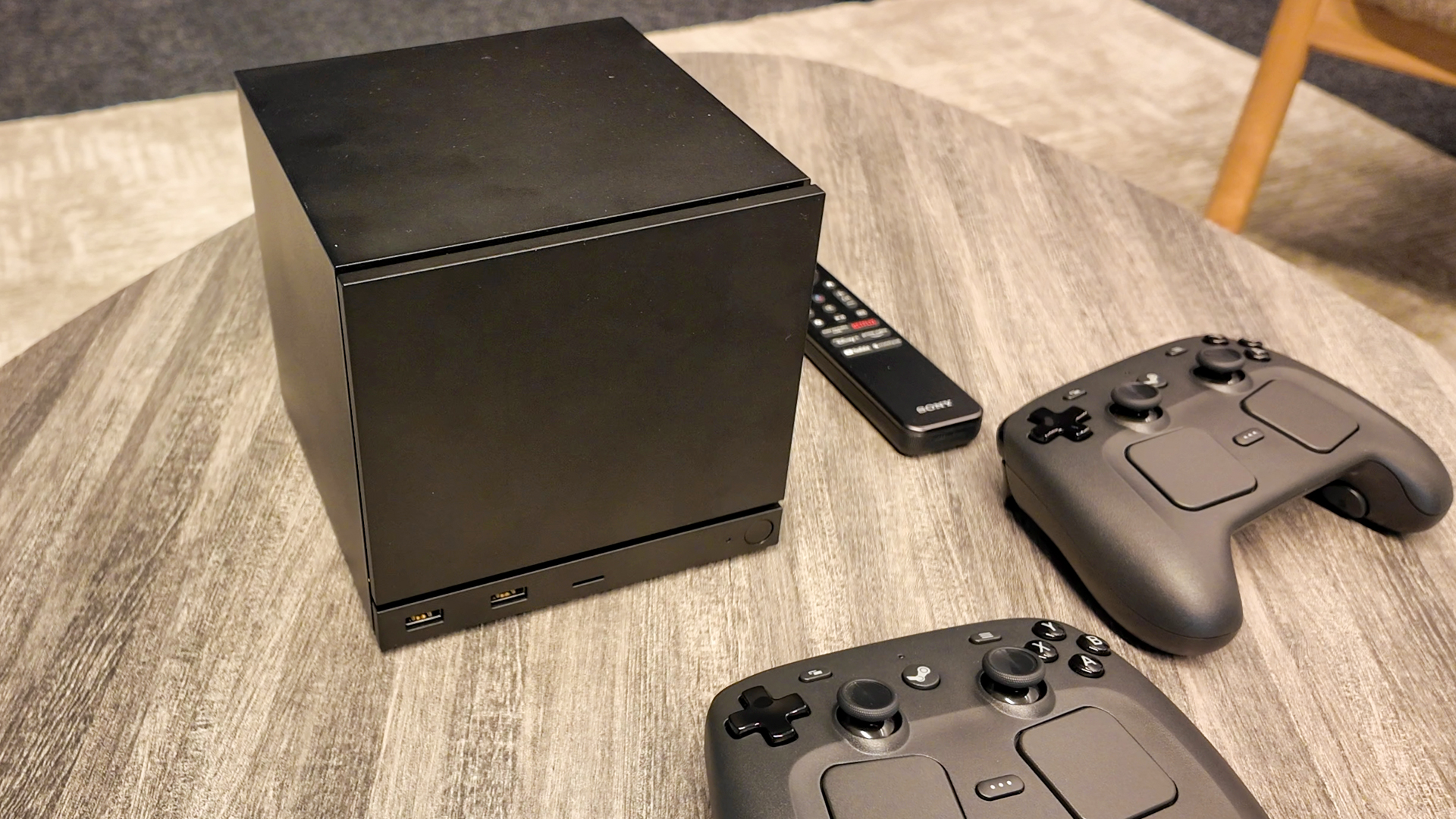
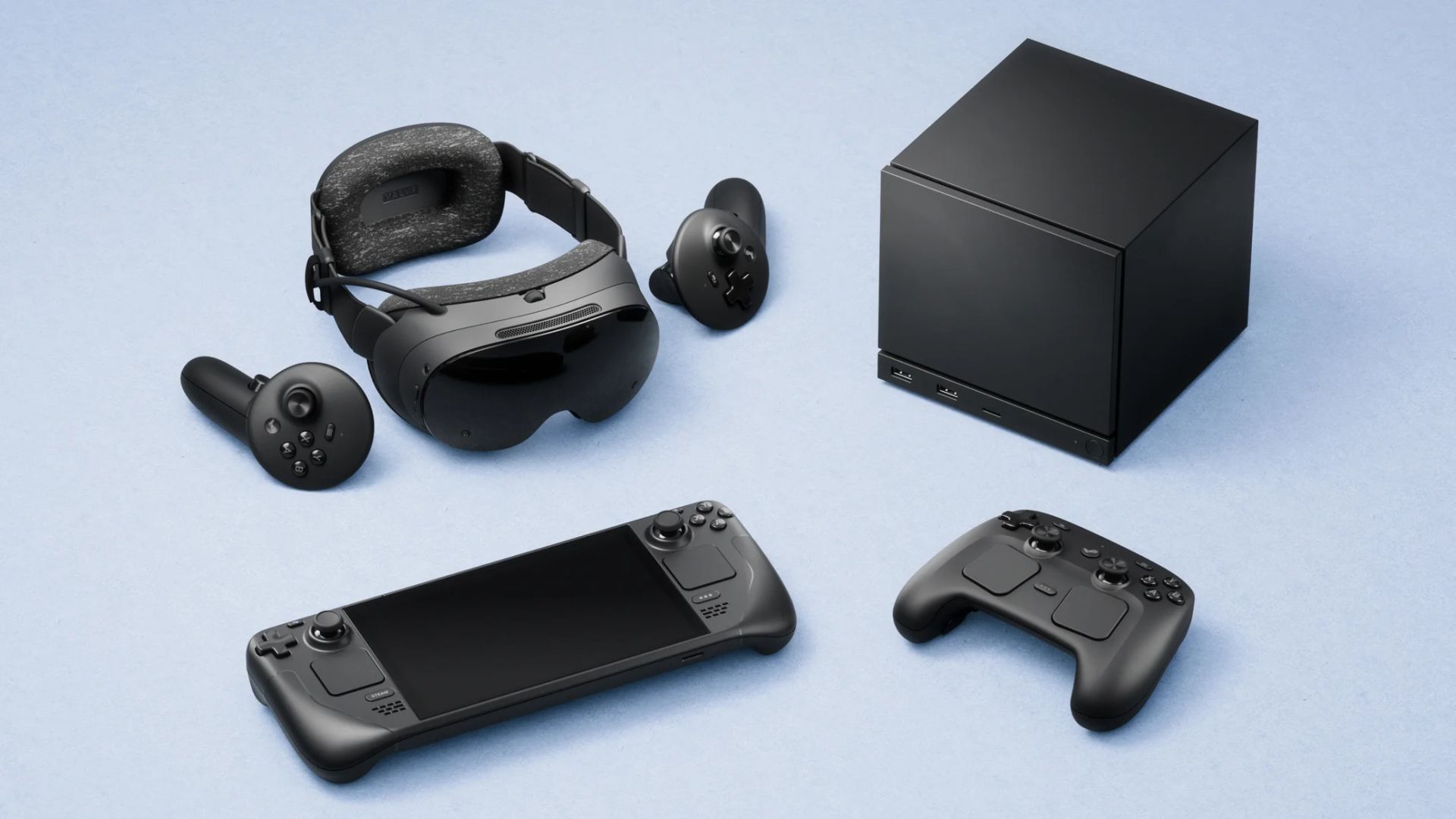
Gaming Anywhere How Do Steam And Android Connect Steam Machine 2026 Image 01 . Steam Sales 2026 Here S The Schedule For The First Half Of The Year 1824cr953 . Steam Machine Perangkat Baru Valve Untuk Gaming 2026 Pojok Gamers Steam Machine Valve 2026 . Valve Has Revealed All Steam Sale Event Dates For 2026 Steam Tererowa Game Rant . Steam Machine S Verified Program Will Have Fewer Constraints For Steam Frame Steam Machine

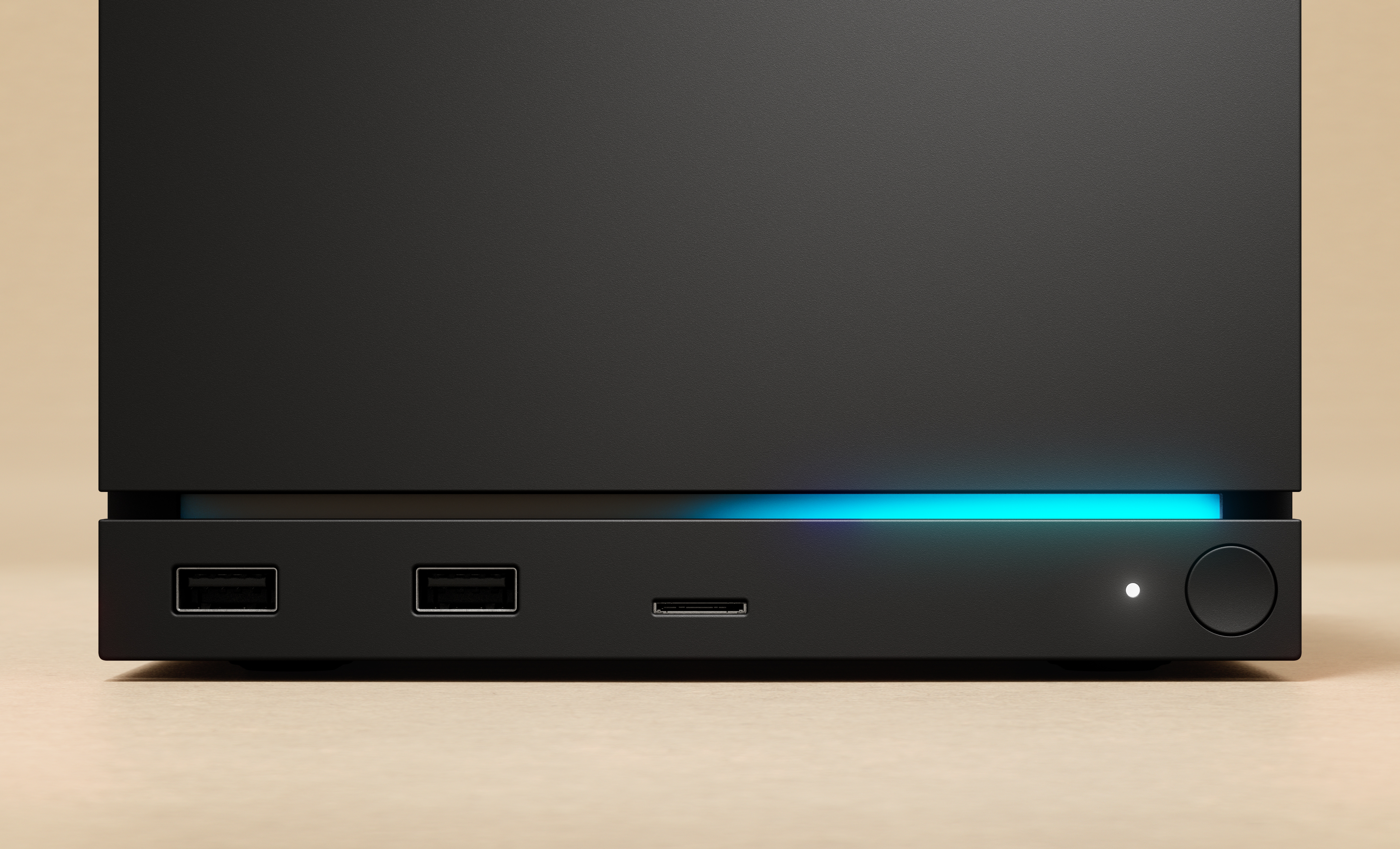


Steam Machine 2026 Valve S New Console Rumors TAFT Independent 12.webp. The Game Awards 2025 Everything Announced For Xbox PC Windows Central . The Most Wishlisted Game Of Steam Next Fest 2026 Has Been Revealed It Steam Next Fest 2025 . Valve Steam Machine PC Console Hybrid Launches Early 2026 Why It Could Valve Steam Machine 2026 Official Product Photo 1024x512 . Amazon Prime Gaming January 2026 Lineup Features 10 Games Including Amazon Prime Gaming January 2026


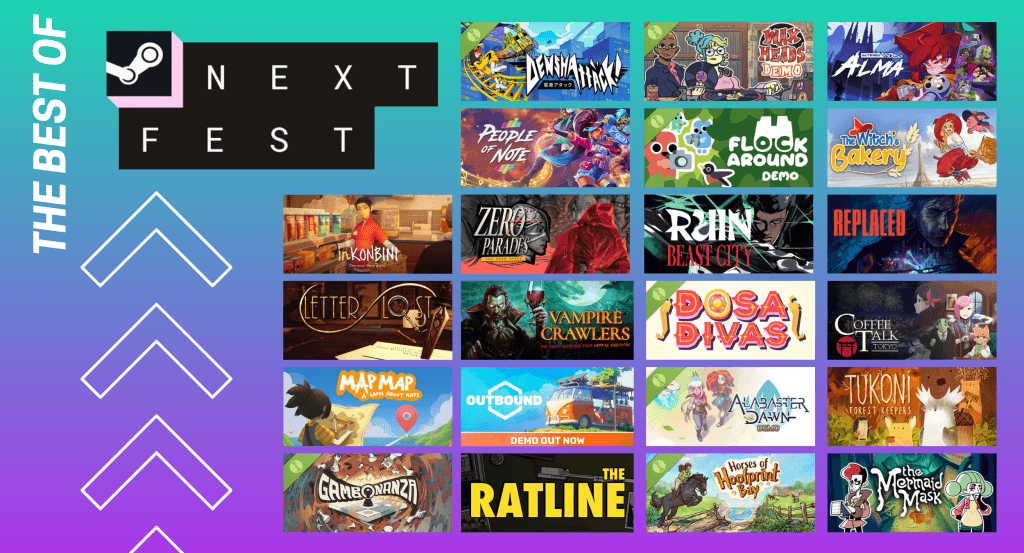

Steam S First Major 2026 Sale Brings Big Discounts On AAA And Indie Games En Steam S First Major 2026 Sale A5d9ddb0 Image A5d9dd9c .webp. Best Steam Deck Games To Play In 2026 Best Steam Deck Games 2026 Featured Image Fgc.webp. Steam Machine S 2026 Release Still Certain Says Valve GameSpot 4631581 . Steam Next Fest February 2026 The 22 Best Game Demos The Best Steam Next Fest Demos 2026 The Punished Backlog 1024x553 . The Best Steam Games To Play In 2026 GamesRadar